Merging Protective Device Libraries
Merging PTW's protective device libraries involves the use of the Copy and Paste commands. This process is performed within PTW with both library files open (you can have as many library files open simultaneously as is necessary). Select the appropriate protective devices to be copied from the source library and paste them into the destination library. The process is listed below in more detail.
Library Merge:
1- Start PTW.
2 - Open your existing PTW library file (referred to as the Destination library from this point on). This will be the library that you're adding or pasting the new protective devices into.
-Select the Document pull-down menu and select the Library menu item.

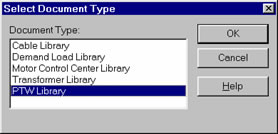
-In the Select Document Type dialog, select the PTW Library and click on the OK button.
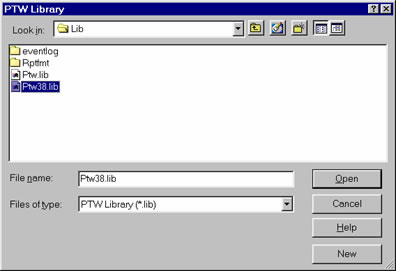
-On the PTW Library window, select the appropriate path, library file and then select the Open button.
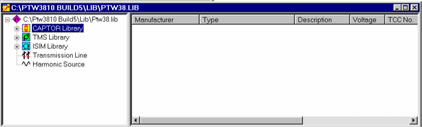
-Expand the CAPTOR Library by clicking on the "+" symbol. Expand the appropriate library category (for example, Static Trip breaker category).
3 - Open the second library file. This will be referred to as the Source library file or the library you're copying the protective device(s) from (the procedure is the same as listed above except that you select a different library file).
-Expand the CAPTOR Library by clicking on the "+" symbol. Expand the appropriate library category.
4 - Select the protective device(s) you wish to copy.
-To select a single protective device, click once on the manufacturer's name.
-To select multiple (contiguous) devices, press and hold the key and select the first and last device. Every device in between will also be selected.
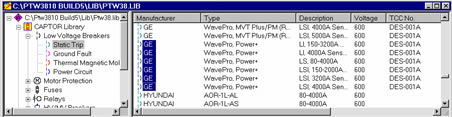
-To select various devices (non-contiguous), press and hold the <Ctrl> key while selecting the appropriate protective devices.
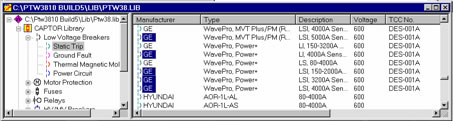
5 - Once the appropriate protective devices have been selected in the Source library, select the Device pull-down menu. Click on the Copy menu item.
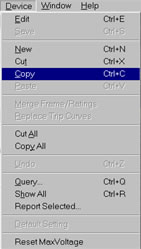
6 - Bring the Destination library back into focus.
-You can do this by clicking on the library window itself if it's visible in the background or by selecting the Window pull-down menu. The bottom half of this menu lists all the windows currently open.
7 - If you haven't already done so, expand the appropriate library category. Note: When copying and pasting protective devices, they should be from the same category. Do not try to copy a high-voltage fuse and paste it into the thermal-magnetic breaker category. PTW will not allow this by greying out the Paste menu item.
8 - Select the Device pull-down menu and click on the Paste menu item to add the devices to your library. The new protective devices will be listed at the end of the device list. This is only temporary and the next time the library is opened the device list will be alphabetized by manufacturer.
9 - If the protective devices you're pasting into the destination library already exist, the following dialog will appear. Select the appropriate option and click on the OK button.
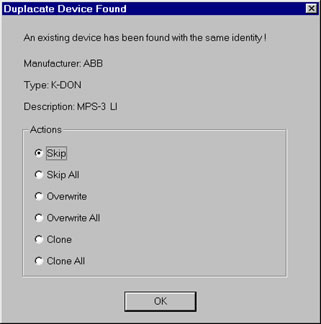
10 - Finished
If you have additional questions, please feel free to contact tech support.